Miniboard Soundboard Player
Miniboard is a simple windows soundboard player without all
the paid shenanigans. Best paired with VB Audio cables.
Everyone gets the right to use a soundboard without a limit or a monthly subscription.
No ads, no tracking, no data collection, just a simple press and play.
Miniboard allows you to use custom sounds using the VB Audio cables without
the need of voicemeeter.
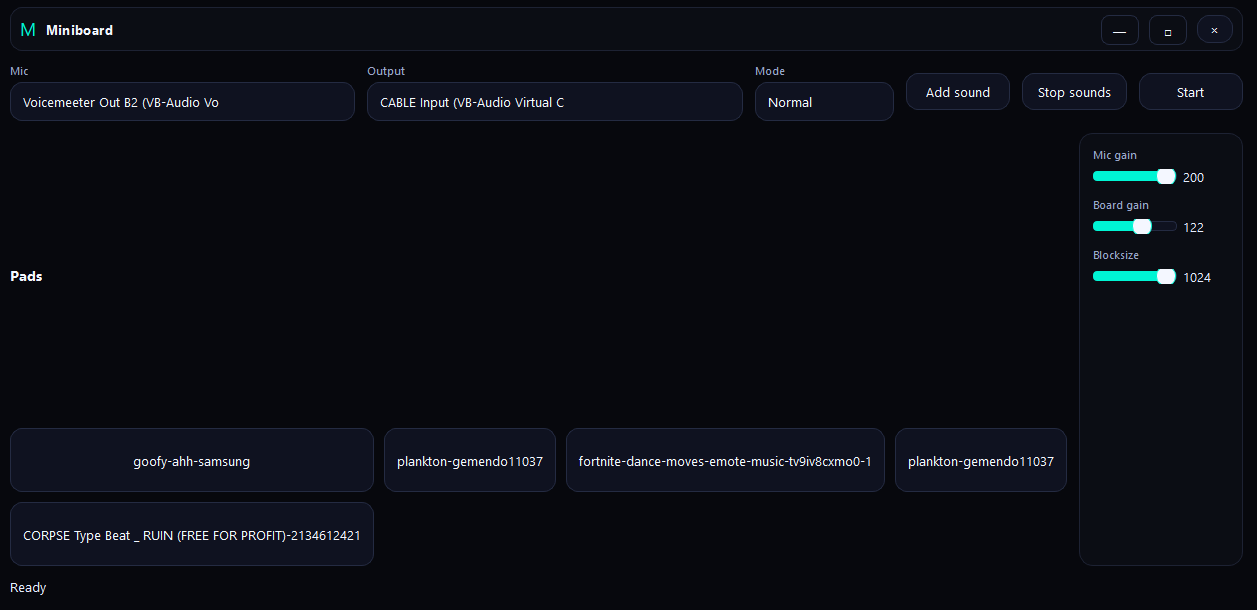
UI Example of Miniboard soundboard
Features
- Normal & Layer Mode : Allows you to layer sounds ontop of each other, and normal mode to
stop the sound if it detects another sound
- Mp3, Wav, Flac, Ogg support : Use your favorite format with ease of mind.
- Monitor : Monitor your voice and sounds. or if you feel ugly only sounds.
- Open Source : Audit, modify, and use the codebase as you please
- Light-f*cking-fast : Easy on your hardware, minimal footprint and memory and it just works.
- MB Audio Engine : No need for a mixer, no need for drivers, you download, works. Caveman
language works.
News and updates :
Fetching the latest shit...
Sources with verified badges are trusted.
Download the available versions (Compiled)
Tutorial : How to use it?
To use Miniboard, you need to have VB Audio cables installed. You can download it from the official
website here.
Once you've installed VB Audio cables, you can use Miniboard to play sounds through it.
To set it up, look below at the screenshot :
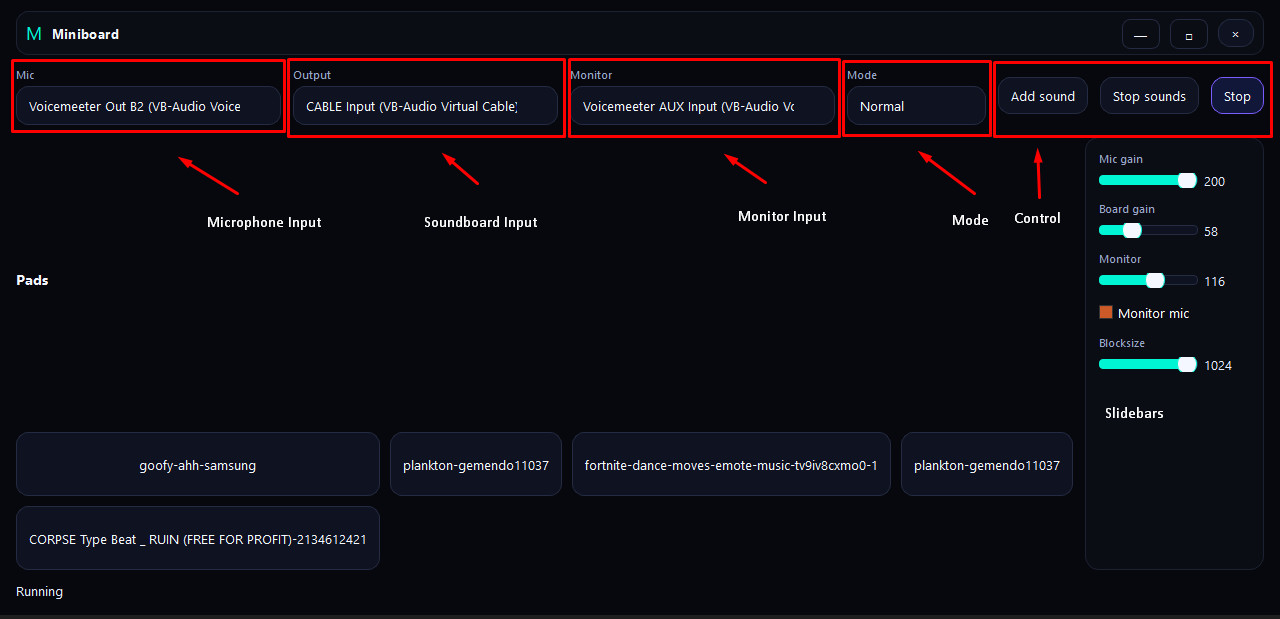
The Mic input lets you select the microphone input (Your actual Mic, In this
showcase we are using a route via voicemeeter)
You're not required to use Voicemeeter at all, although its preferred.
Select your microphone input, There might be a Huge selection and it can be overwhelming. pick
wisely!
The Output is what connects your mic and the soundboard together. That's why we need
VB Cables in the first place!
The Monitor input enables internal monitoring where you set your speakers
Control Buttons lets you add buttons, stop all played sounds, and enables and disables the
engine.
The Slidebars let you configure Mic, Board, Monitor gain (how loud it is) with the option to turn on
Mic monitor, which enables hearing your own mic input.
Do Not mess with the blocksize slidebar and leave it as is, it may cause extreme glitches.
Pads is what sounds you've added to the program and can be played with a press or hotkey (Hotkey N/A to latest build).
The Running text at the left bottom corner shows Miniboard's status (Running,ready, stopped)